9. Export Map
The Export panel renders the selected AOI to a PNG or JPG image using the layers you choose. In the current UI, this step is named 8. Export Map.
Panel layout
The panel contains:
- A layer tree for export selection
- A checkbox to follow the main QGIS Layers panel visibility
- Four layer presets
- Buttons for Refresh Layers, Check All, and Uncheck All
- Read-only labels for Pixels and Page size
- Controls for AOI, Filename, Format, and JPG quality
- Two export options that affect rendering
- Buttons for Compute, Export Image (direct), and Open Export Folder
Choosing which layers to export
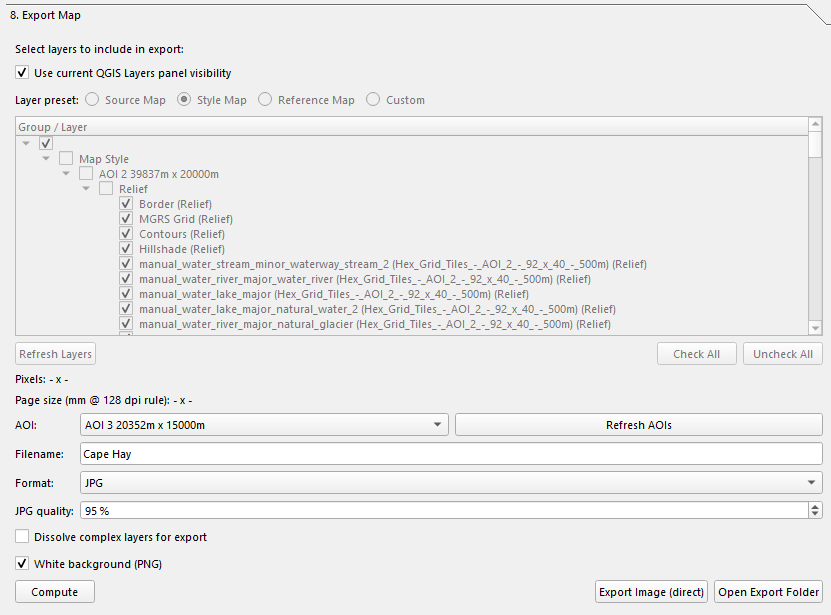
By default, the export panel builds its own layer tree from the current QGIS project layer tree.
Each layer can be checked or unchecked independently. Group items are also checkable.
Use current QGIS Layers panel visibility
If Use current QGIS Layers panel visibility is enabled:
- The export ignores the separate export tree selection.
- The export uses the visible/hidden state from the main QGIS Layers panel.
- The export tree controls and preset buttons are disabled until you turn this option off again.
Layer presets
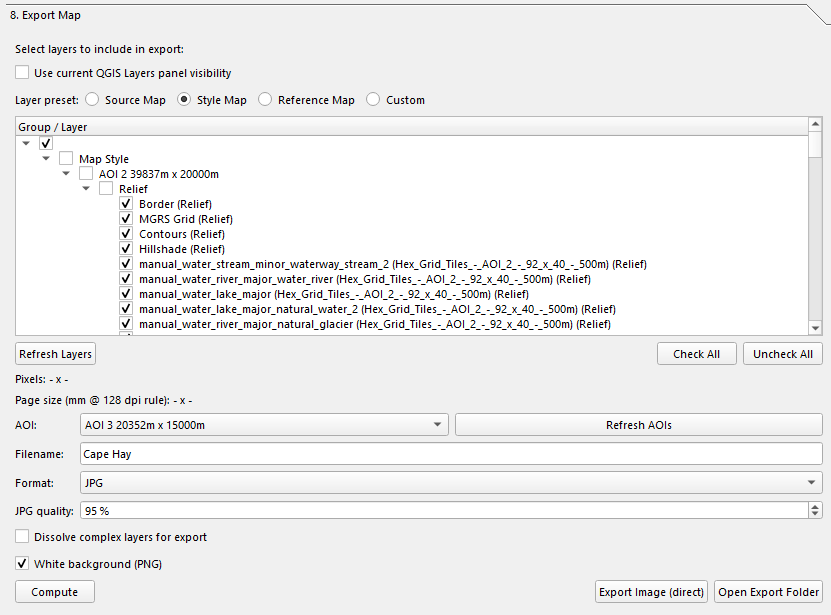
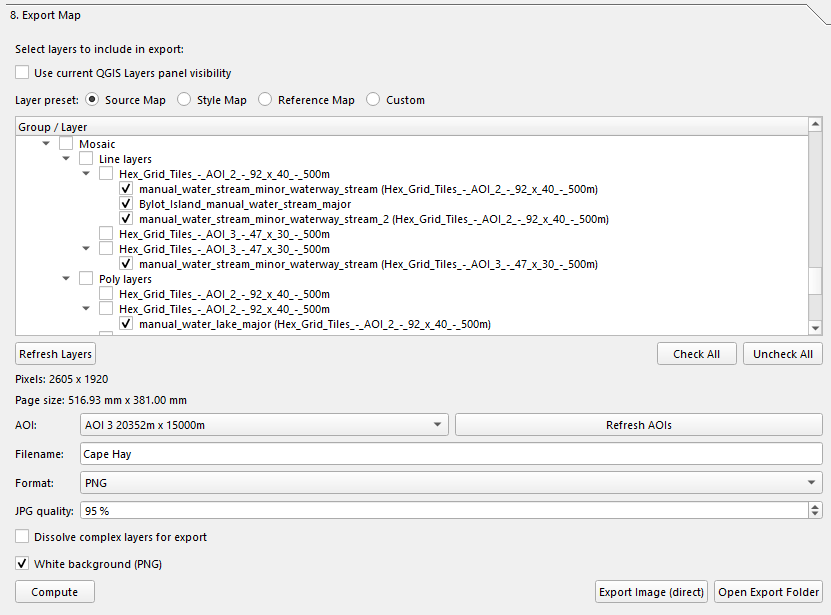
The preset buttons are more specific than the old docs implied. They check layers by group path:
| Preset | What it selects |
|---|---|
| Source Map | Layers under Mosaic, Base, and OSM |
| Style Map | Layers under Map Style |
| Reference Map | Layers under Base and Reference |
| Custom | Whatever is currently checked manually |
If you manually change the tree, the preset switches to Custom.
Default unchecked helpers
When the tree is first built, some helper layers are shown but unchecked by default, including common AOI and helper names such as:
AOICentroid HelpersIntersection HelpersHex Grid Edges
AOI, filename, and format
| Control | What it does |
|---|---|
| AOI | Chooses the export extent. |
| Filename | Base filename without extension. |
| Format | PNG or JPG. |
| JPG quality | Quality setting for JPG output only. Default is 95%. |
The filename is auto-suggested from the project name when possible.
Render options
The current panel includes two options that affect rendering:
| Option | What it does |
|---|---|
| Dissolve complex layers for export | Temporarily merges large polygon layers into a single geometry before rendering. This speeds up export for heavy fill-effect layers but removes internal polygon boundaries during the render. |
| White background (PNG) | Fills the export background with white before rendering. Recommended for correct blend/compositing behavior. If unchecked, PNG export can be transparent. JPG always uses an opaque background. |
Dissolve behavior
The dissolve option is only applied to polygon vector layers with a large number of features. Small layers, line layers, point layers, and rasters are left unchanged.
Computing export size
Click Compute to calculate the output size for the selected AOI.
The code uses a fixed export scale rule:
64 pxper500 m0.128 px/m128 dpi
The read-only labels show:
- Pixels:
<width> x <height> - Page size: physical size in millimeters that corresponds to the same pixel dimensions at 128 dpi
If the AOI CRS is not in meters, the code logs a warning because exact sizing depends on a projected CRS such as UTM.
Exporting
Click Export Image (direct) to render the image.
The export code:
- Reads the selected AOI extent.
- Resolves layers from either the export tree or the live QGIS Layers panel visibility.
- Applies optional temporary dissolve layers for rendering.
- Renders the AOI extent at the computed pixel size.
- Saves the result into the
Export/folder under the project root.
Output filename
The saved filename is built like this:
<filename>_<width>x<height>.png
or:
<filename>_<width>x<height>.jpg
So the pixel dimensions are always included in the final filename.
Export folder
Exports are written to:
Export/
Use Open Export Folder to open that folder in the system file explorer.
Render behavior
This export is not a background task. The current code uses a modal progress dialog with a cancel button while a sequential render job runs.
That means:
- You can cancel an export in progress.
- QGIS stays responsive enough for the progress dialog, but this is still a foreground export operation.
Notes
- If no AOI is selected, export will not run.
- If no layers are selected, export will not run.
- If Use current QGIS Layers panel visibility is enabled but no layers are visible there, export will not run.
- PNG can be transparent if White background (PNG) is turned off.
- JPG output is always saved as an opaque image and uses the selected JPG quality value.
Return to the User Guide index.