8. Labels
The Labels panel extracts label text from point and line layers, assigns those labels to hexes, previews the result, and can export both a QGIS label layer and engine-oriented YAML output.
Panel layout
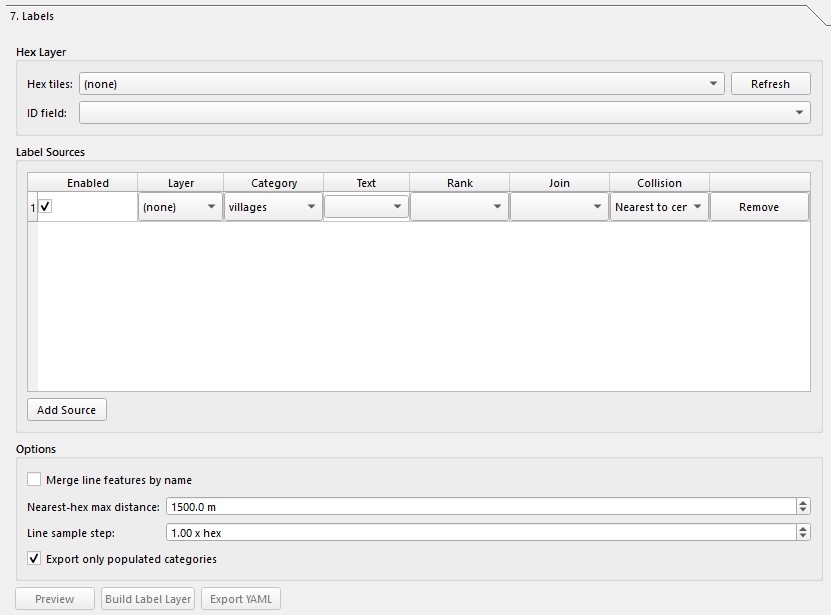
The panel contains:
- Hex Layer
- Label Sources
- Options
- Action buttons for Preview, Build Label Layer, and Export YAML
- Preview & Output
Hex Layer
Choose:
| Control | What it does |
|---|---|
| Hex tiles | The polygon hex layer the labels will be assigned to. |
| ID field | The field used as the hex identifier. The code prefers hex_id when available. |
| Refresh | Reloads available polygon layers and their fields. |
The selected hex layer must be polygon geometry and must contain a valid ID field.
Label Sources
Click Add Source to add one label-source row. Each row contains:
| Column | What it does |
|---|---|
| Enabled | Includes or excludes the source row. |
| Layer | Source vector layer. |
| Category | Output category used in previews and YAML export. |
| Text | Label text field, or an expression. |
| Rank | Optional rank field used for sorting/prioritizing labels. |
| Join | Join method used to assign labels to hexes. |
| Collision | Collision handling policy. |
| Remove | Deletes the row. |
Text source
The Text column can use:
- A source field such as
name <expression>to enter a QGIS expression manually
Join modes
The available join choices depend on geometry type:
- Point layers use point-oriented join modes
- Line layers use line-oriented join modes
The old docs’ simplified “point-in-hex or nearest-hex” wording no longer fully describes the live UI.
Categories
The category list is still engine-oriented and includes values such as:
villagescitieshighwaysmajor_roadsminor_roadsrail_roadsriverspondsterrain_featuresstreamsminor_streamsairstripszonescustom
Options
| Option | What it does |
|---|---|
| Merge line features by name | Merges line features with the same name before output. |
| Nearest-hex max distance | Maximum distance for nearest-hex assignment. |
| Line sample step | Sampling distance expressed as x hex. |
| Export only populated categories | When enabled, YAML export skips empty categories. |
The current UI defaults Export only populated categories to enabled.
Actions
| Button | What it does |
|---|---|
| Preview | Runs the label build logic and shows a report in the preview pane without writing files. |
| Build Label Layer | Writes a QGIS label output layer to disk and adds it to the project. |
| Export YAML | Writes YAML output for downstream engine use. |
Preview & Output
The bottom panel contains:
| Control | What it does |
|---|---|
| Preview text box | Shows the preview/build report. |
| Export path | Displays the current YAML export path. |
| Open Output Folder | Opens the export folder in the file explorer. |
| Copy Debug Log | Copies the label debug log to the clipboard. |
Output behavior
The current code produces two different outputs:
- A label vector layer when you use Build Label Layer
- A YAML export when you use Export YAML
The previous doc only described a single export flow, which is no longer accurate.
Notes
- The buttons are enabled only when a valid hex layer is selected and at least one enabled source row is configured.
- The labels code expects a usable hex ID field;
hex_idis the preferred name. - The output folder is tied to the project/export paths used by the plugin.
Next: Map Style