6. Layer Data Processing
This step converts imported source layers into project-ready vector layers using your selected Hex Grid Tiles layers.
Panel layout
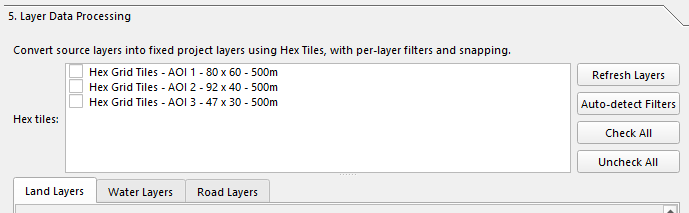
The panel contains:
- A short description of the conversion workflow
- A Hex tiles checklist
- Buttons for Refresh Layers, Auto-detect Filters, Check All, and Uncheck All
- A tabbed processing area with Land Layers, Water Layers, and Road Layers
- Batch action buttons at the bottom
Hex tiles selection
The panel can process one or more Hex Grid Tiles layers. Each selected hex layer is handled independently.
If no hex tiles are checked, conversion and cleanup actions will not run.
Processing tabs
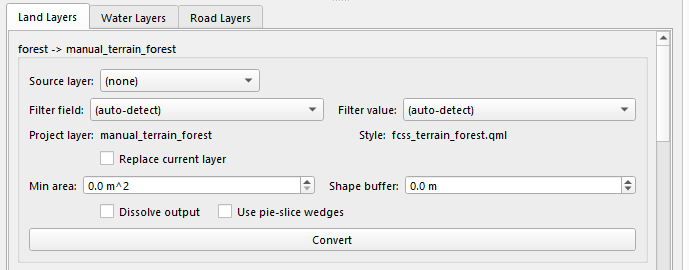
Each tab contains one group per configured target class. Each group is labeled like:
<class_id> -> <target_layer>
Examples of target layers come from the processing profile, such as:
manual_terrain_forestmanual_water_lake_majormanual_road_highway
Shared controls for every class
Every class row has these core controls:
| Control | What it does |
|---|---|
| Source layer | Picks the source vector layer to convert from. |
| Filter field | Optional attribute field used to narrow the source features. |
| Filter value | Optional attribute value paired with the filter field. |
| Project layer | The target output layer name defined by the profile. |
| Style | The matching style preset, if one exists in the style catalog. |
| Replace current layer | Reuse the base target layer instead of writing a variant output. |
The Auto-detect Filters button tries to populate sensible default field/value filters for each class based on the selected source layer.
Polygon layer controls
Polygon classes expose these extra controls:
| Control | What it does |
|---|---|
| Min area | Rejects very small source polygons before conversion. |
| Shape buffer | Expands or shrinks source polygons before testing against hexes. |
| Dissolve output | Unions the generated output into one dissolved geometry. |
| Use pie-slice wedges | Uses wedge-shaped slices inside each hex instead of always taking the full hex. |
The water_lake class also has:
| Control | What it does |
|---|---|
| Fill from Hex Elevation (bucket=0) | Appends bucket-0 hexes from the matching Hex Elevation layer when available. |
Line layer controls
Line classes expose these extra controls:
| Control | What it does |
|---|---|
| Snap mode | Controls how generated lines follow the hex grid: None, Centroid, Edge, or Vertex. |
| Line buffer | Buffer distance applied to source lines during processing. |
| Sampling step | Step distance used when sampling or tracing along source lines. |
| Min length | Minimum line length to keep. No minimum is allowed. |
Line classes have two action buttons:
| Button | What it does |
|---|---|
| Convert | Runs the standard line conversion workflow. |
| Convert (Snap Source) | Runs the line workflow using source-snapping behavior. |
Polygon classes only show Convert.
Batch actions

At the bottom of the panel, the current UI provides:
| Button / Option | What it does |
|---|---|
| Convert All Layers | Runs every configured class across the checked hex tile layers. |
| Convert Land Layers | Runs only classes in the Land tab. |
| Convert Water Layers | Runs only classes in the Water tab. |
| Convert Road Layers | Runs only classes in the Road tab. |
| Dry run | Reports what stacked-shape cleanup would change without editing layers. |
| Remove Stacked Shapes | Removes overlaps from lower-priority Mosaic layers after generation. |
What conversion creates
The processing profile still defines each class, target layer, mode, and priority, but the live workflow is now driven by the per-class controls in the panel.
Depending on the class mode:
- Polygon classes generate polygon outputs based on hex overlap.
- Line classes generate line outputs snapped or traced against the selected hex grid.
Generated layers are written to the Mosaic output directory and then loaded into the project under grouped Mosaic folders.
Output grouping
The code places outputs under:
Mosaic > Poly layers > <AOI label>Mosaic > Line layers > <AOI label>
The AOI label is derived from the selected Hex Tiles layer or project name.
Output naming behavior
If Replace current layer is enabled:
- The base target layer name is reused.
- The existing layer can be refreshed in place.
If Replace current layer is disabled:
- The plugin creates a variant suffix from the selected filter field/value or source layer name.
- If a shapefile with that name already exists, the plugin appends a counter.
This means multiple filtered variants of the same target layer can coexist.
Priority and conflict handling
Processing still respects class priority from the profile:
- Higher-priority generated features can block or remove lower-priority ones.
- The Remove Stacked Shapes action performs an additional cleanup pass across existing Mosaic layers.
- For polygon outputs, lower-priority overlapping hex features may be removed.
- For stream/water cleanup, the code also handles special water-edge cases.
Notes
- The panel works from currently loaded QGIS vector layers, so Refresh Layers is useful after OSM import or grid generation.
- The source-layer candidates are filtered by geometry type, so polygon classes only show polygon sources and line classes only show line sources.
- A style preset may be unavailable for some target layers; the UI shows
(no preset)in that case. - The internal code still uses "mosaic" names for directories and classes, but the user-facing step should be treated as Layer Data Processing.
Next: Labels