7. Map Style
The Map Style panel builds or updates a styled presentation stack for a selected AOI using JSON templates plus referenced QML style files.
This is more capable than the older “apply one template” description. The live UI now manages templates, a styled layer stack, elevation-driven styling, labels, borders, grids, and overlays in one place.
Panel layout
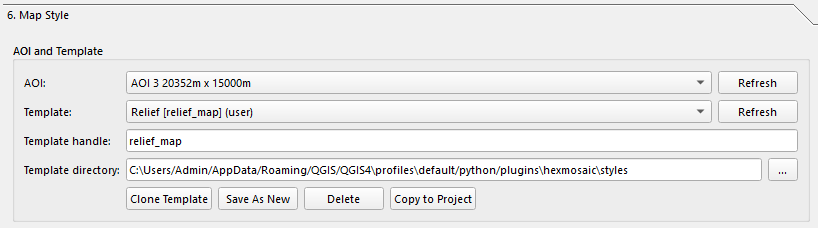
The panel is organized into these sections:
- AOI and Template
- Styled Layer Stack
- Elevation
- Labels
- Border, Grid, and Overlays
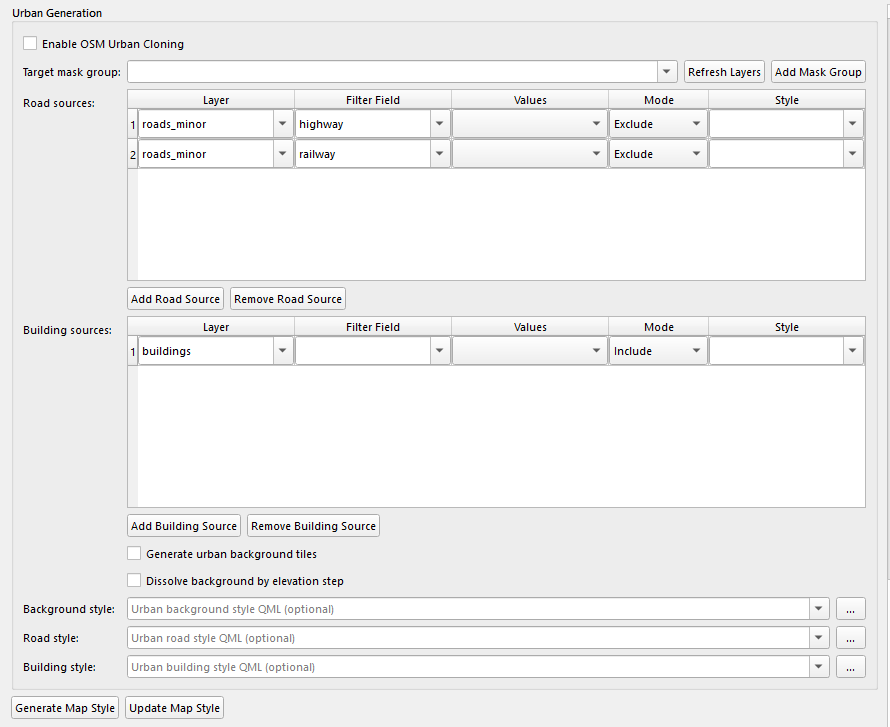
- Additional urban/road/building source controls
- Buttons for Generate Map Style and Update Map Style
AOI and Template
| Control | What it does |
|---|---|
| AOI | Selects the AOI the styled map stack will be built for. |
| Template | Chooses a stored map-style template JSON. |
| Template handle | Internal template identifier. |
| Template directory | Styles/template asset directory used by the current template. |
| Refresh | Reloads AOIs or templates. |
The template actions are:
| Button | What it does |
|---|---|
| Clone Template | Duplicates the current template under a new name. |
| Save As New | Saves the current UI state as a new user template. |
| Delete | Deletes a non-default user template. |
| Copy to Project | Copies referenced QML files into the project styles/ folder and repoints the template directory there. |
Styled Layer Stack
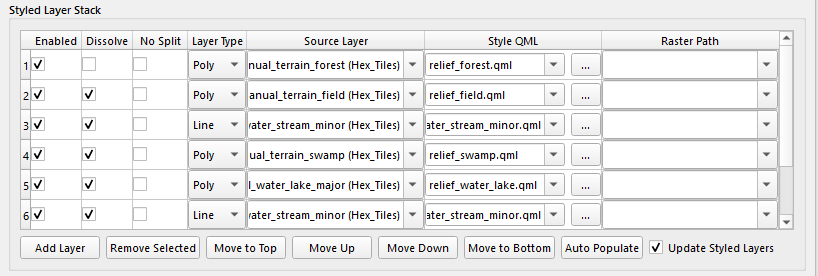
This table defines the stack of layers that will be styled/generated.
The current columns are:
| Column | What it does |
|---|---|
| Enabled | Includes the row in style generation. |
| Dissolve | Dissolves the styled output for that row when supported. |
| No Split | Prevents elevation-based splitting for that row. |
| Layer Type | The output layer type/category. |
| Source Layer | Source layer used for that style row. |
| Style QML | QML file applied to that row. |
| Raster Path | Raster source path when applicable. |
The row controls are:
- Add Layer
- Remove Selected
- Move to Top
- Move Up
- Move Down
- Move to Bottom
- Auto Populate
- Update Styled Layers
This is the main area where the presentation stack is assembled before generation.
Elevation
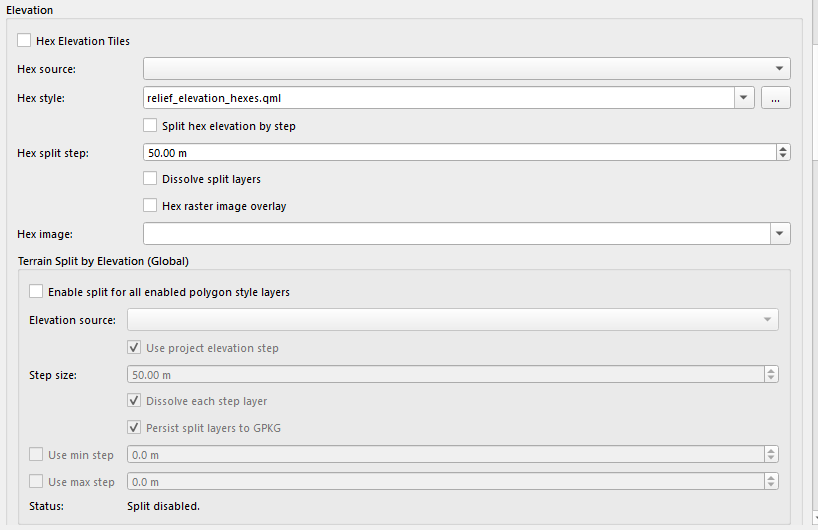
The Elevation section can include several derived or styled components:
- Hex Elevation Tiles
- Optional hex elevation QML styling
- Split hex elevation by step
- Hex raster image overlay
- Global polygon terrain splitting by elevation
- Contours
- Hillshade
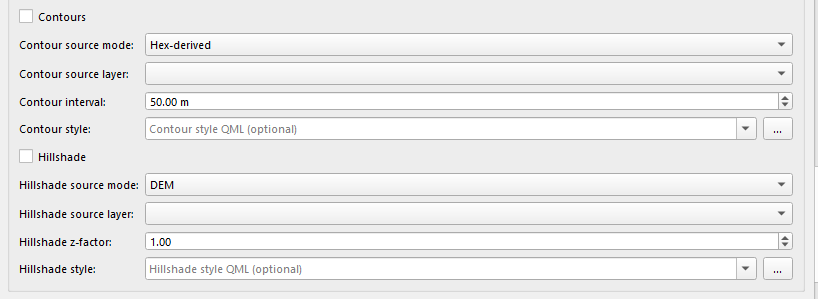
The old doc only mentioned built-in templates and styling rules. The current UI now exposes these elevation-driven map-style controls directly.
Labels
The Labels section can include a labels layer in the generated map-style stack.
| Control | What it does |
|---|---|
| Include labels layer | Adds labels to the styled output stack. |
| Label source | Chooses the source labels layer. |
| Label style | Applies a rule-based label QML style. |
Border, Grid, and Overlays
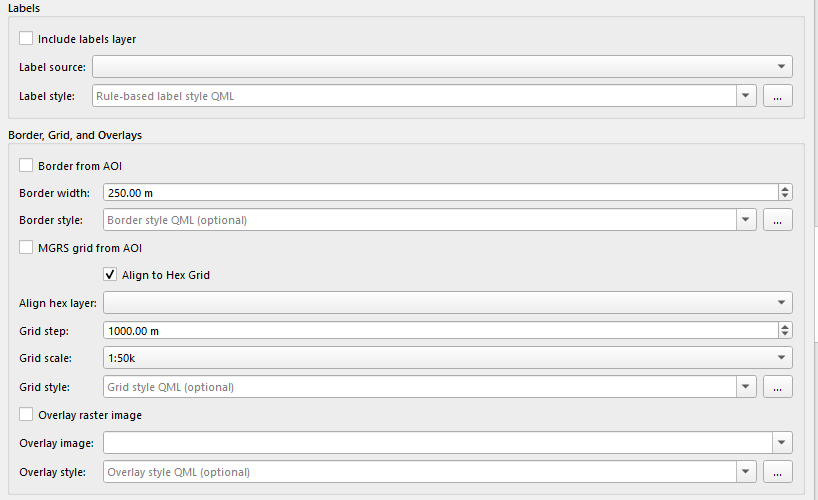
The extras section currently includes:
- Border from AOI
- MGRS grid from AOI
- Align to Hex Grid
- Grid step and scale controls
- Optional border/grid/overlay QML styling
So the panel is doing more than layer restyling. It also generates map framing elements and overlays tied to the AOI.
Template behavior
Templates are stored as JSON records. The current code supports:
- Built-in default templates
- User templates saved under the user template directory
- Cloning and deleting user templates
- Saving the current UI state back into a template
So the older doc’s “copy a built-in JSON and refresh” workflow is incomplete.
Generating vs updating
The current panel uses:
| Button | What it does |
|---|---|
| Generate Map Style | Builds a new styled map-style stack for the selected AOI/template. |
| Update Map Style | Re-applies the current template/UI settings to the existing styled stack. |
Styled outputs are grouped under:
Map Style > <AOI>
Notes
- Default templates cannot be deleted.
- Copy to Project is useful when you want the project to carry its own QML style assets instead of depending on the plugin install location.
- The template directory affects which QML files are available in the various style pickers.
Next: Labels